How fast is
your charger?
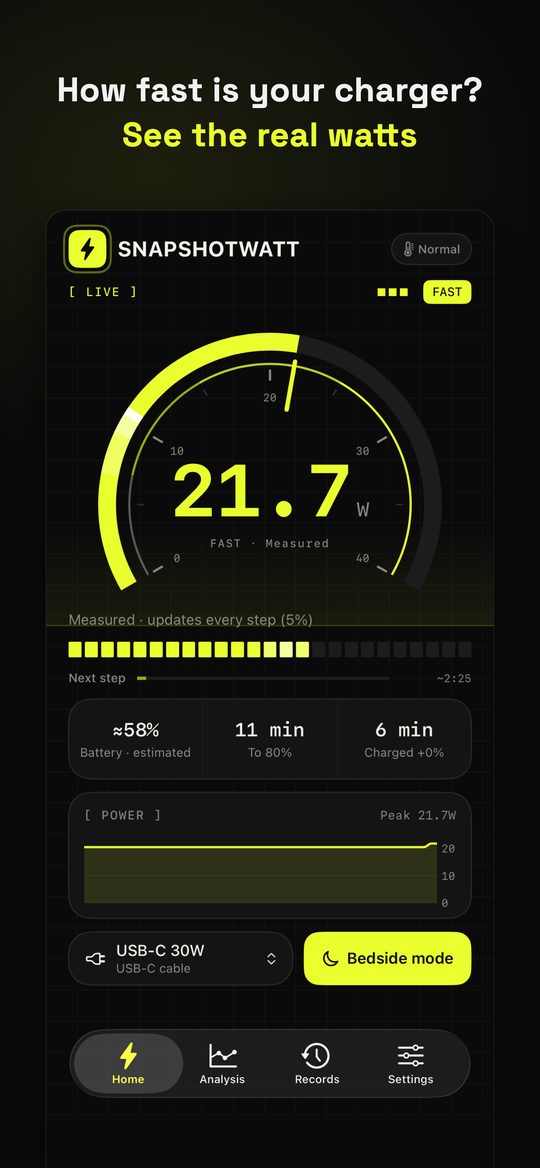
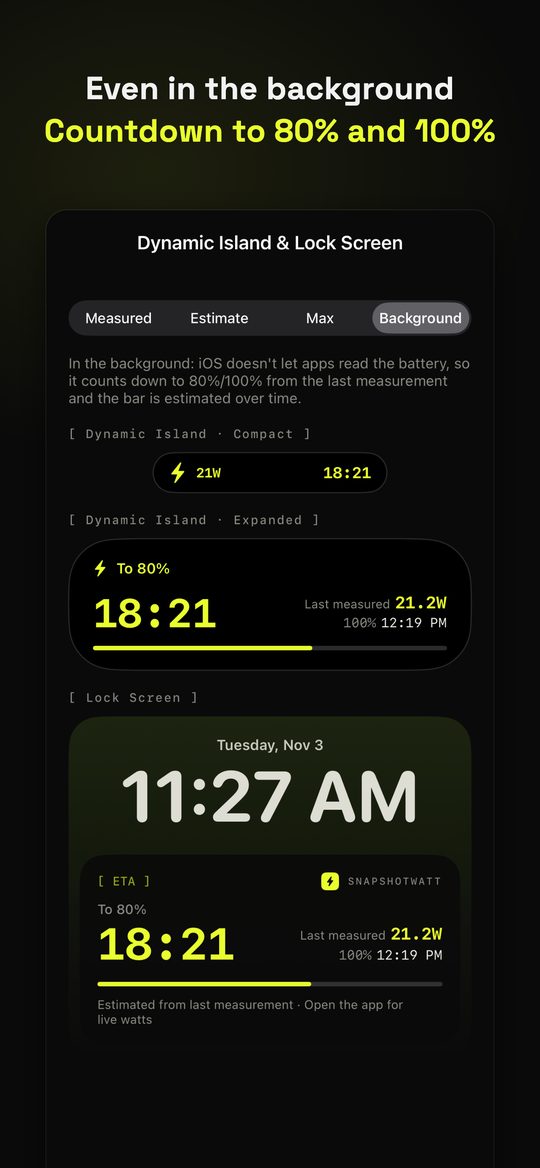
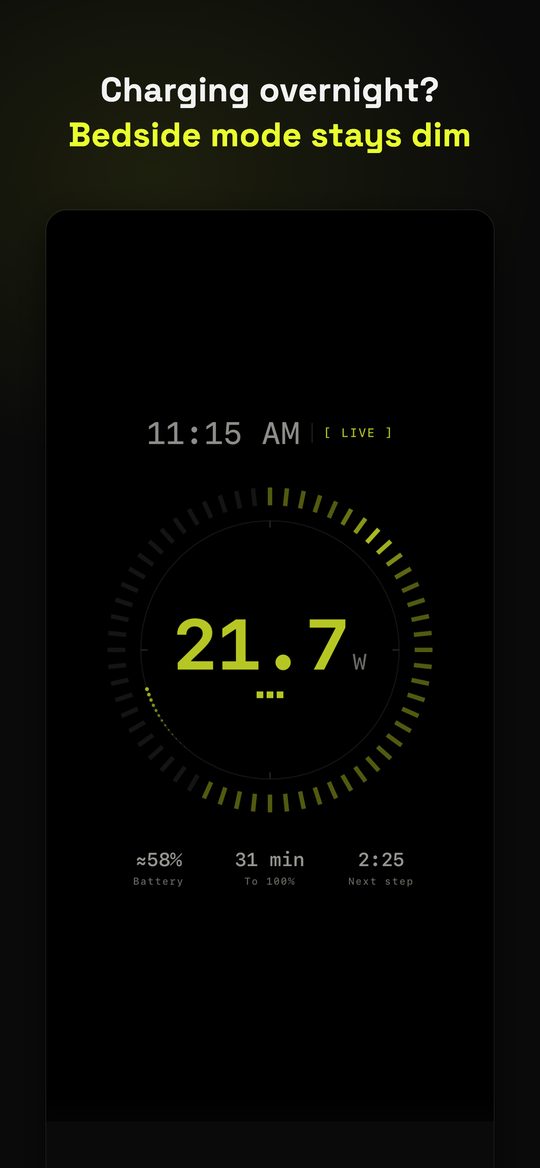
The box says 65W. What do you actually get? Plug in to see the watts and the time left to 80% and 100%. Unplug and the charge is saved, so you can see which charger and which cable are really the fastest.
Plug in to know. Unplug and it’s saved.
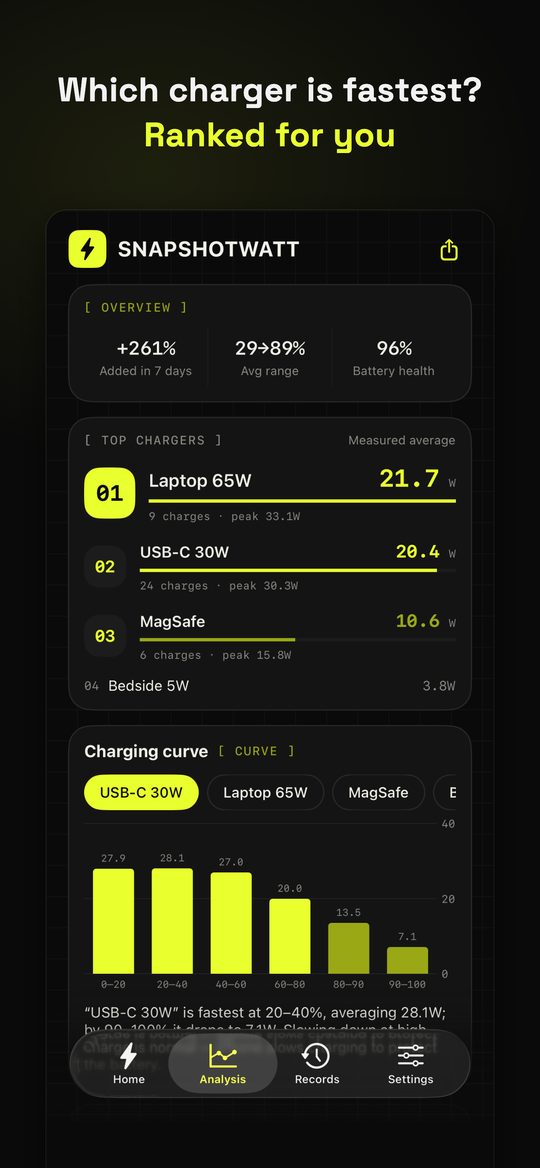
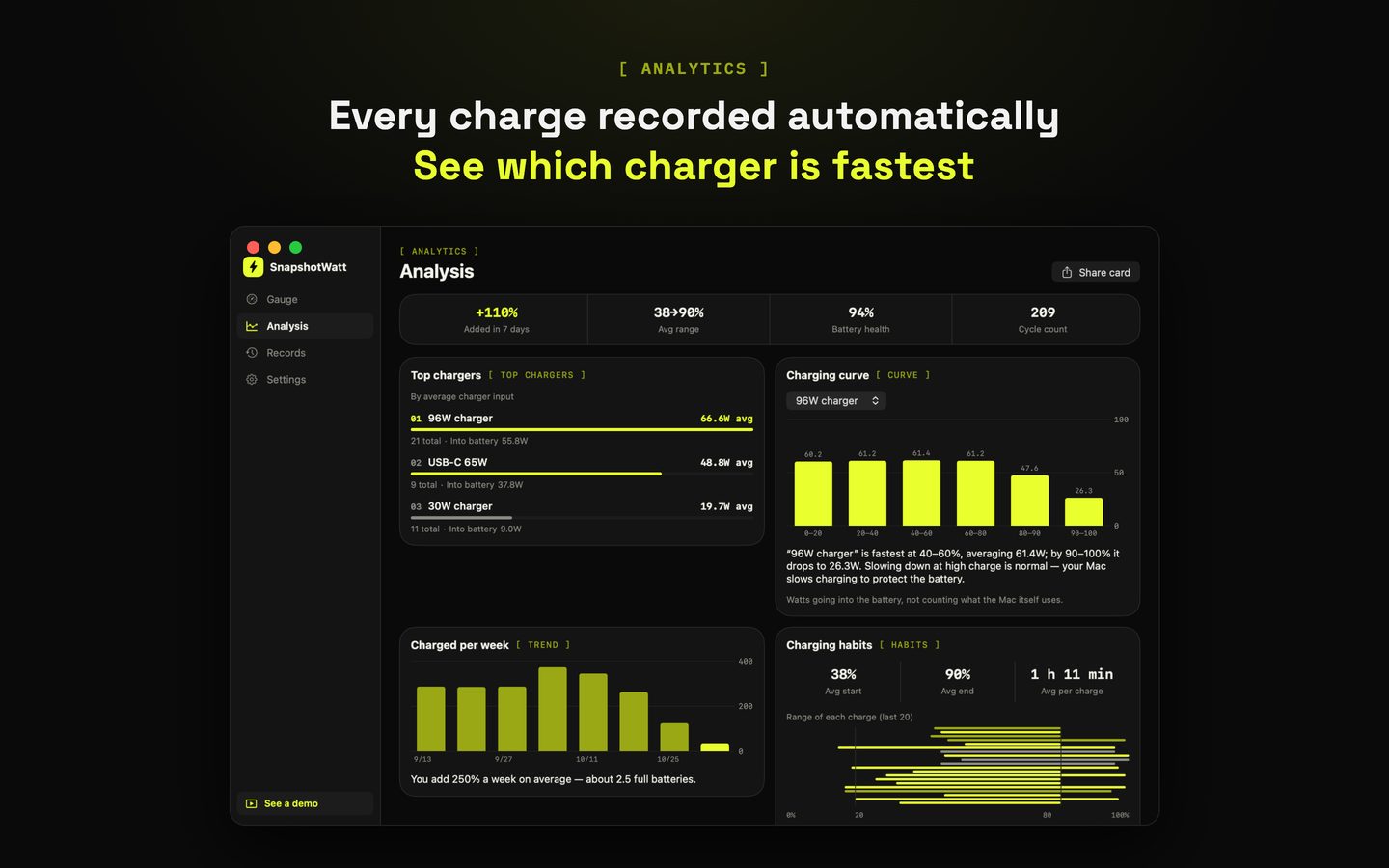
No start or stop buttons. Open the app and plug in to start measuring; unplug and the charge is saved. Over time it becomes your own charger leaderboard.
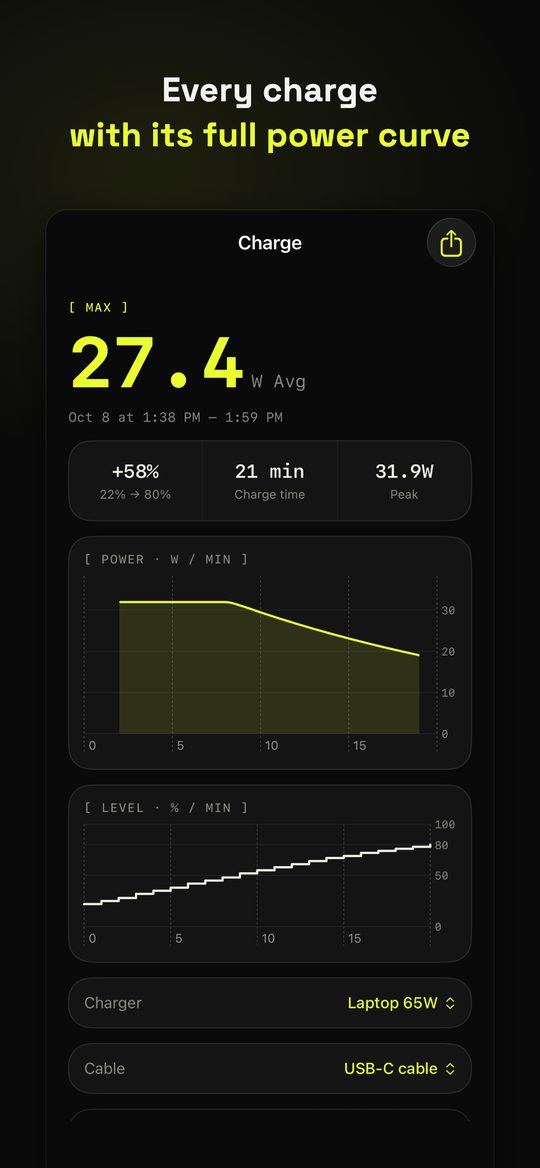
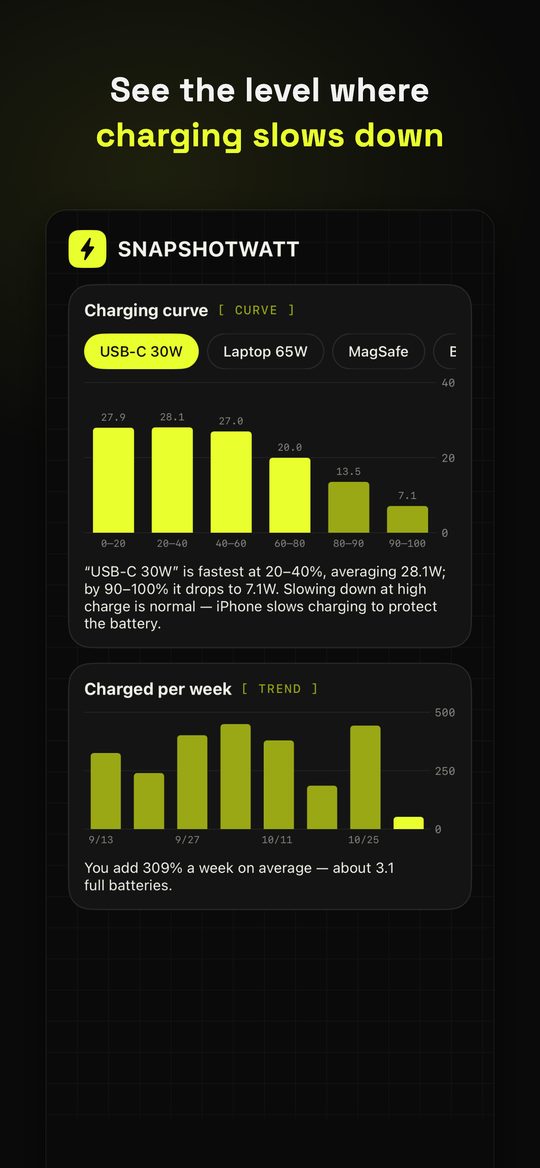
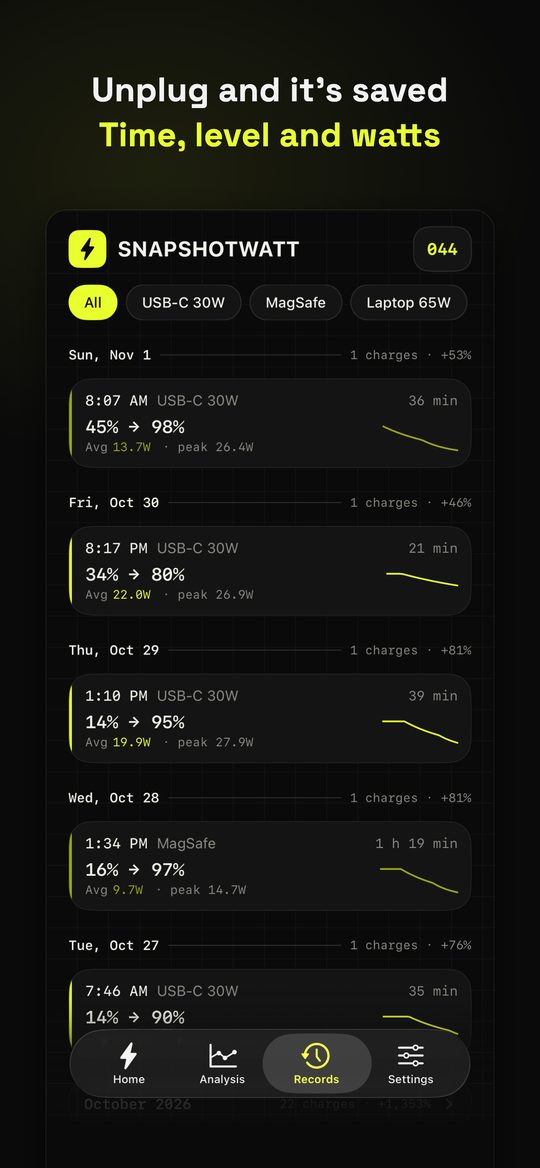
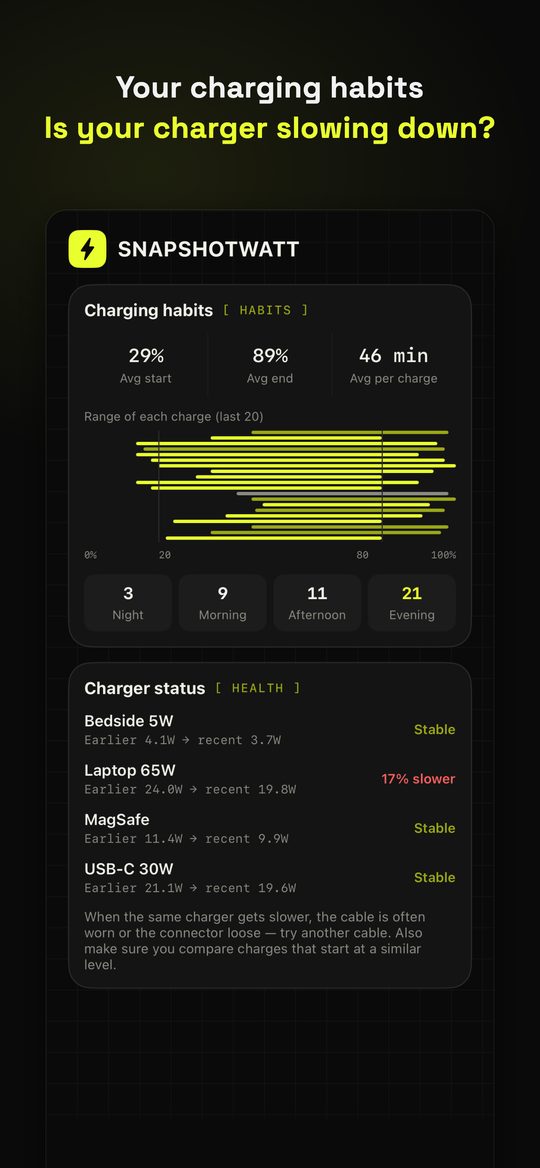
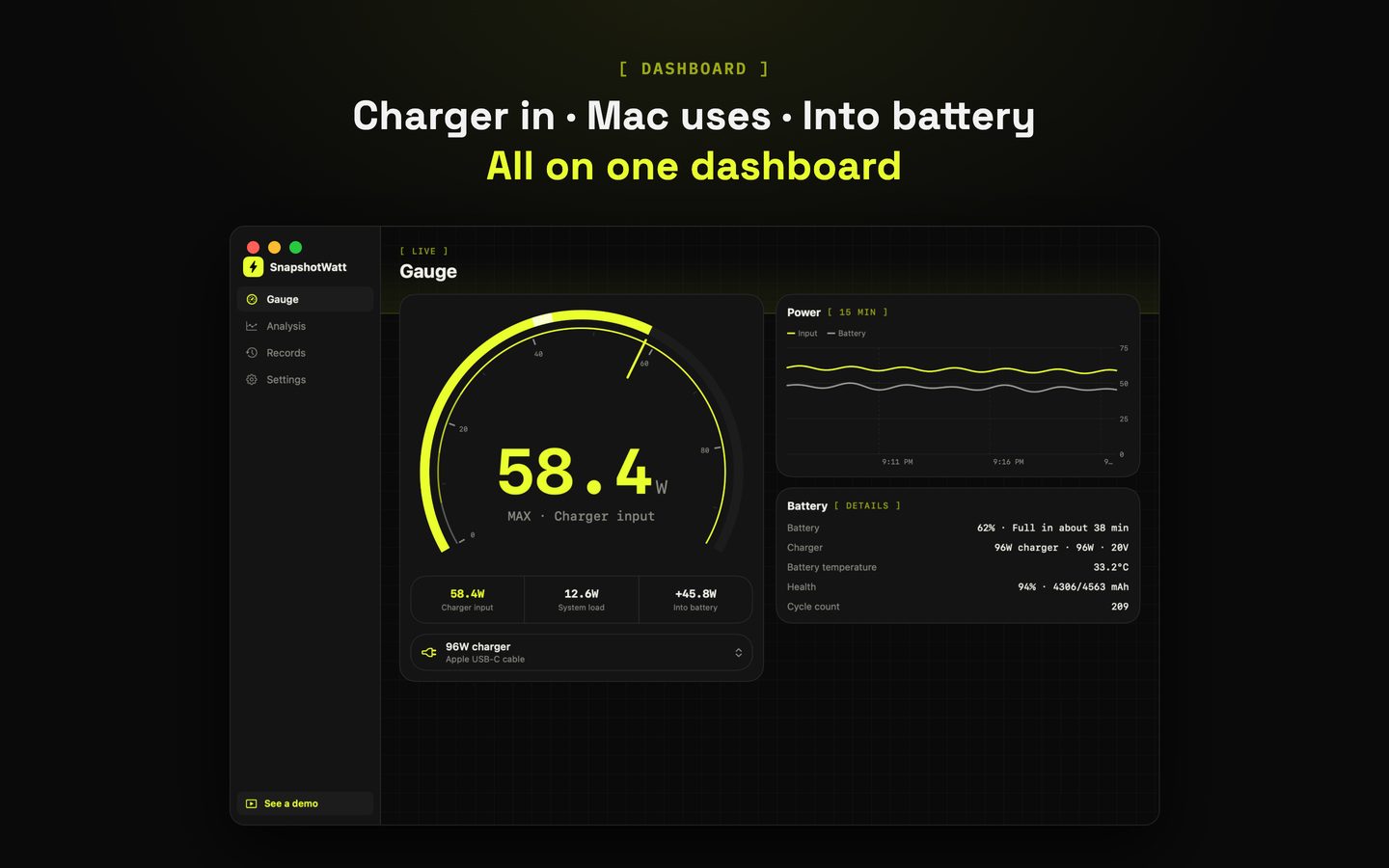
On MacBook too, right in the menu bar
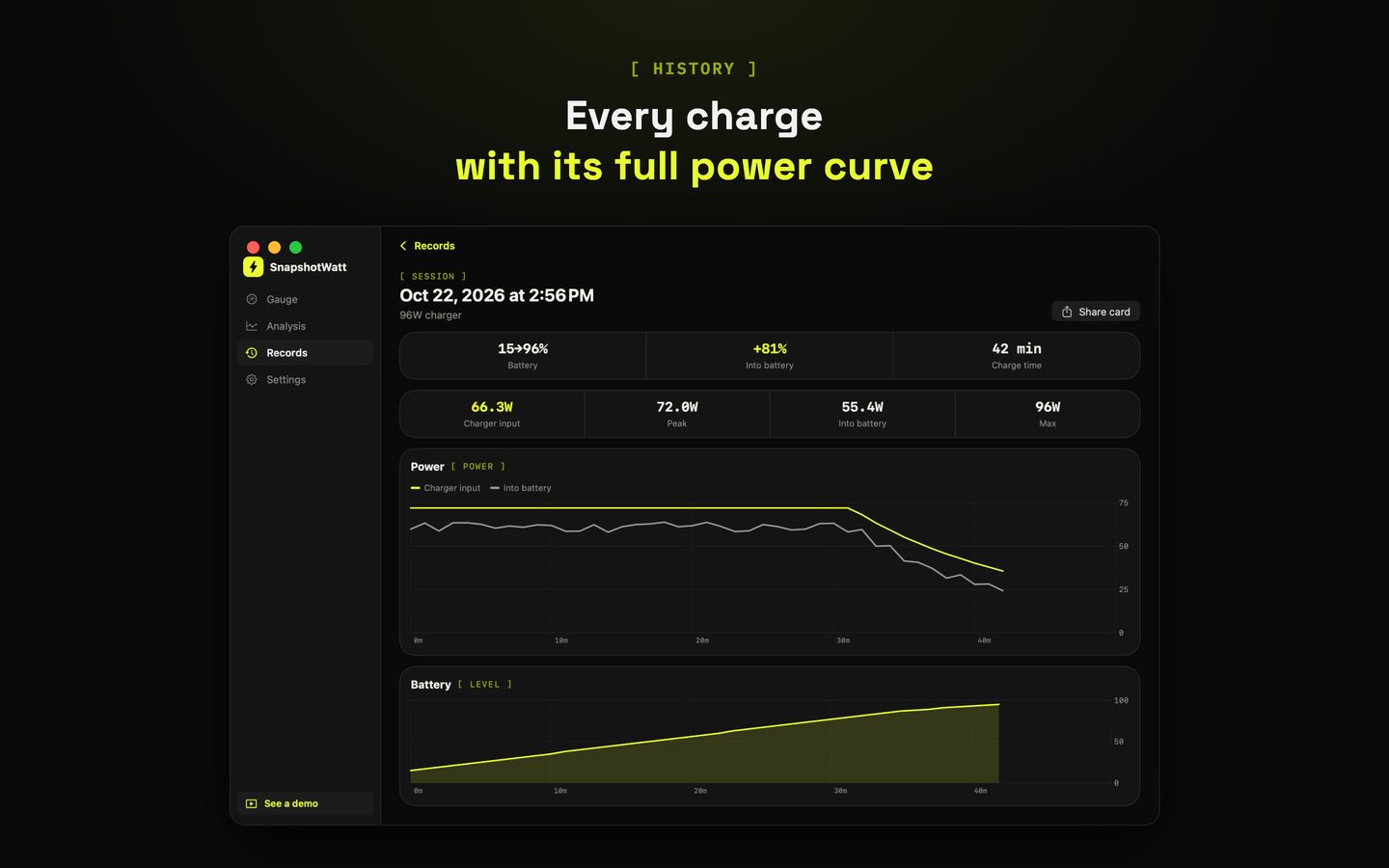
The Mac app reads the battery controller directly: how much the charger delivers, how much the Mac uses, and how much actually goes into the battery.
Where do the watts come from? Honestly:
I’m an engineer, and I don’t want to impress you with a number I can’t explain. The two platforms expose different data, so they work differently.
iPhone: estimated from 5% steps
iOS doesn’t give apps real current or voltage, only the battery level in 5% steps. The app times each step; two steps are exactly 5% apart, and your phone’s battery capacity turns that into watts.
Mac: read from the battery controller
A MacBook reports real data from its battery controller: charger input, system use, voltage × current. On Mac the numbers are read directly, not estimated.
For the first 10–60 seconds macOS hasn’t reported input power yet, so it shows the past average (≈) or “Measuring”. Once full or held at 80%, the charger is only powering the Mac, so that time isn’t counted in charging time or averages.
The speed test is never locked
The free version measures, shows the Dynamic Island and has bedside mode. Pro is about seeing deeper and keeping more: a one-time purchase, not a subscription.
- Live watts, Dynamic Island, bedside mode, charging alerts
- Mac menu bar watts, dashboard, battery details
- History for the last 14 days (everything is still kept)
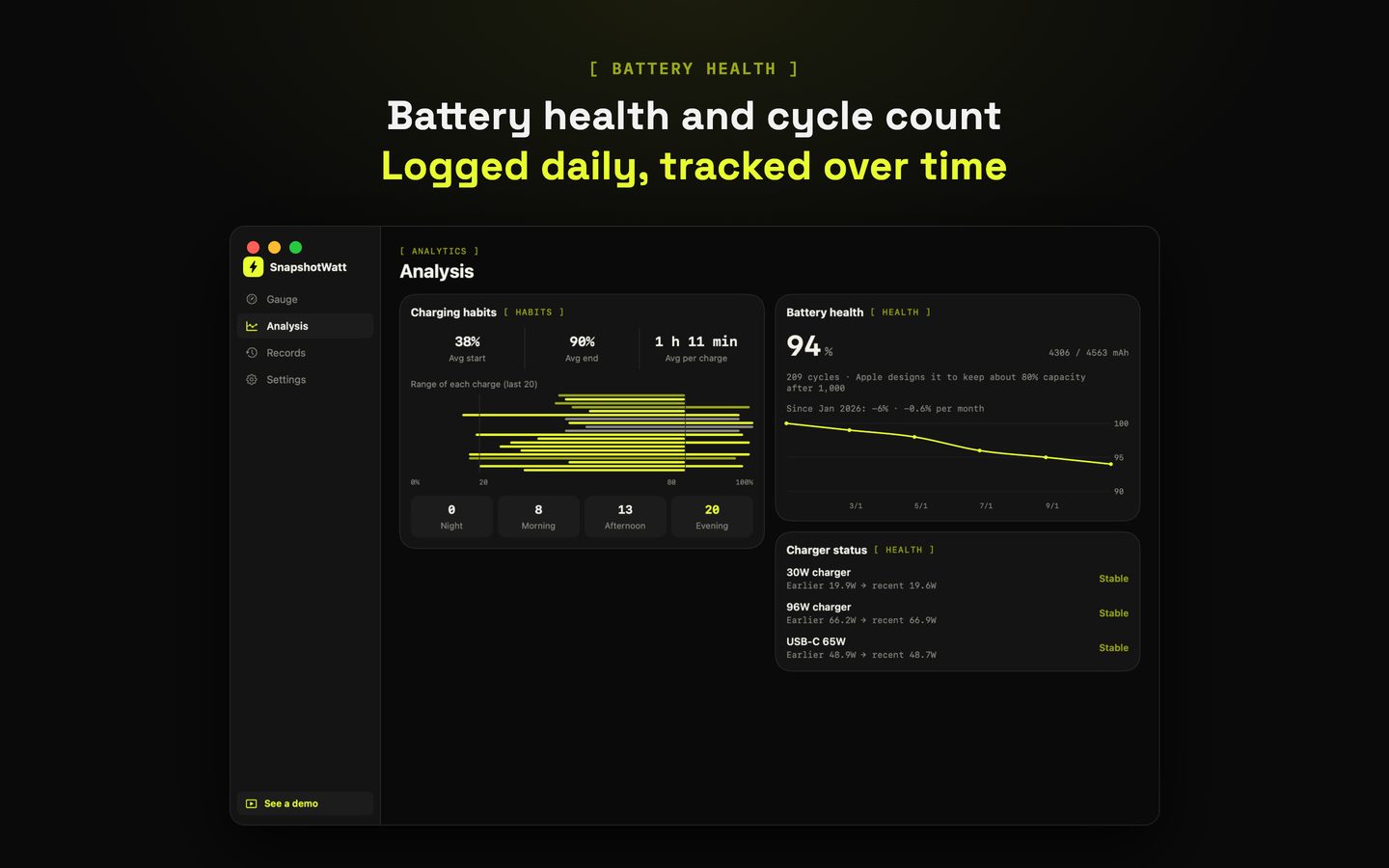
- Overview, charger ranking, last 7 days, care tips, battery health
- Up to 5 chargers and 5 cables
- Full charging history
- Charging curve, weekly energy, habits, charger health
- Mac 15-minute power chart
- Home Screen and Lock Screen widgets
- Unlimited chargers and cables
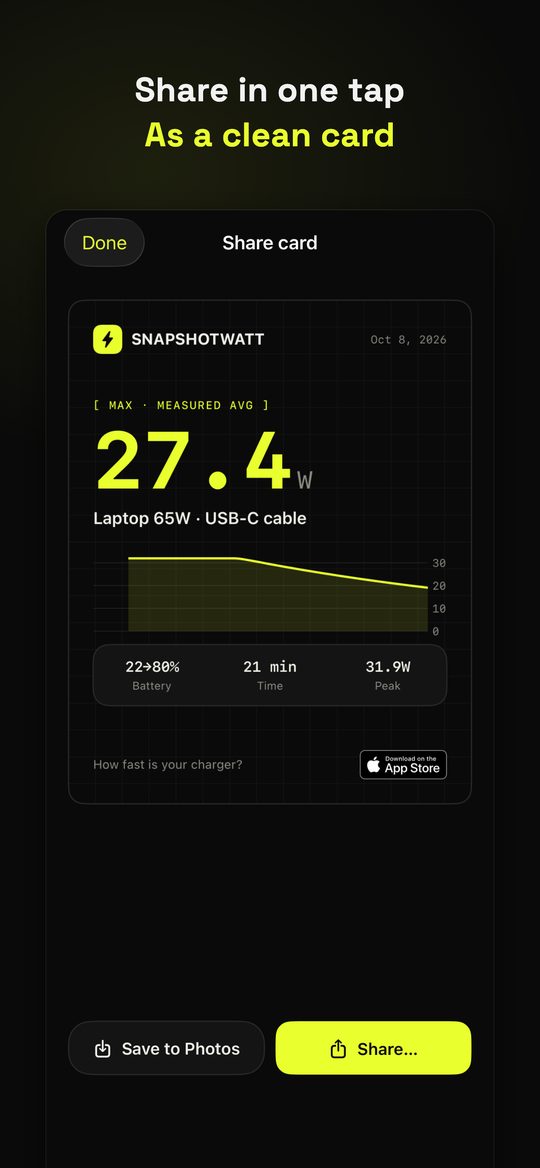
- Share any insight card, export CSV
- Everything added to Pro later is included
Your charging history stays on your device
Details in the Privacy Policy.
Open it and go. No sign-up, no login.
No tracking and no third-party analytics SDKs.
Your charging history lives only on your iPhone and Mac. We can’t see it.
FAQ
Where can I download it?
Both the iPhone and Mac versions are on the App Store. Use the download buttons on this page; on a Mac, the iPhone link opens the Mac App Store too.
Which devices are supported?
iPhone with iOS 17 or later, and Mac with macOS 14 or later.
Why is there a “≈” before the watts right after plugging in?
On iPhone the watts can only be calculated once the battery level steps up. Until then, the app estimates from this charger’s history and marks it ≈. After two steps it’s a measured value.
Do I need to buy Pro separately for iPhone and Mac?
No. Buy once with your Apple ID and it works on both iPhone and Mac.
Who do I contact with questions or ideas?
Email contact@compoundwater.app. I read every message myself.
Next time you plug in, see how fast it really is
Now on the App Store for iPhone and Mac. The speed test is always free.